
Download TaskbarX for Windows
Center your Windows taskbar icons with smooth animations, transparency effects, and full style control. The dock-like taskbar experience for Windows 10 and 11.
What Is TaskbarX?
A lightweight Windows utility that transforms your taskbar into a centered, stylish dock.
TaskbarX is a free, open-source Windows application that repositions your taskbar icons to the center of the screen. Developed by Chris Andriessen and released under the MIT license, it brings a clean, macOS-style dock layout to Windows 10 and Windows 11 without modifying system files or registry entries.
How It Works
When you pin or unpin apps from your taskbar, TaskbarX detects the change and smoothly shifts all icons to maintain their centered position. You can pick from 42 built-in animation styles or disable animation entirely for instant repositioning. The app runs quietly in the background and uses minimal system resources.
Beyond centering, TaskbarX gives you control over the taskbar’s visual appearance. You can make the taskbar fully transparent, apply a Windows Acrylic blur effect, or tint it with any custom color using an RGB/HEX picker. These styling options work independently of the centering feature, so you can use one or both.
Who Uses TaskbarX
Desktop customization enthusiasts on Reddit communities like r/desktops and r/Windows10 frequently recommend TaskbarX as part of their “ricing” setups. System administrators who want a cleaner desktop layout for shared workstations also use it. The tool runs as a portable executable, which means you can carry it on a USB drive and use it on any Windows machine without installing anything.
Current Status
The most recent version is 1.7.8.0, released in October 2022, which added fixes for Windows 11 22H2 dual-monitor setups. The GitHub repository was archived in June 2025, meaning no new updates are planned, but the existing version remains fully functional on current Windows builds. TaskbarX is also available on the Microsoft Store for about $1-2, which adds auto-update support and serves as a way to support the developer.
Key Features
Everything you need to customize your Windows taskbar, from icon placement to visual styling.
Centered Icon Positioning
Automatically moves all taskbar icons to the center of the bar, creating a clean dock-like layout. Icons reposition dynamically when you open or close applications.
42 Animation Styles
Choose from 42 different animation types for icon repositioning, including ease-in, bounce, elastic, and linear. Set animation speed from instant to slow for the exact feel you want.
Transparent & Acrylic Styles
Make your taskbar fully transparent, apply Windows Acrylic blur, or use a solid color overlay. Adjust the opacity level with a slider to get the exact look you prefer.
Custom Color Tinting
Pick any color using the built-in RGB/HEX color picker or eyedropper tool. Apply color tints and gradients to your taskbar background for a personalized desktop theme.
Multi-Monitor Support
Works across multiple displays with independent settings per monitor. Each screen can have its own centering offset, animation style, and taskbar transparency level.
Vertical Taskbar Mode
Full support for vertical taskbar placement on Windows 10. Icons center vertically with the same animation and styling options available in horizontal mode.
Position Offset Control
Fine-tune icon placement with pixel-level offset controls. Shift icons left, right, up, or down from center to match your exact layout preferences on any display size.
Hide Start Button
Optionally hide the Windows Start button for an even cleaner look. Combine this with a transparent taskbar for a minimal floating-dock aesthetic.
Task Scheduler Integration
Set TaskbarX to launch automatically at Windows startup using the built-in Task Scheduler configurator. Includes a startup delay option to avoid conflicts with other apps loading.
Portable Application
No installation needed. Extract the ZIP file to any folder and run it. TaskbarX does not modify your registry or install background services. Delete the folder to remove it completely.
System Requirements
TaskbarX runs on most Windows 10 and Windows 11 systems with minimal hardware demands.
| Component | Minimum | Recommended |
|---|---|---|
| Operating System | Windows 10 v1709 | Windows 10 21H2+ / Windows 11 |
| Processor | Any x86/x64 CPU | Intel Core i3 / AMD Ryzen 3 or newer |
| Memory (RAM) | 2 GB | 4 GB |
| Disk Space | 5 MB | 10 MB (including config files) |
| Runtime | .NET Framework 4.7.2 | .NET Framework 4.8 (included in Win10/11) |
| Display | 1024 x 768 | 1920 x 1080 or higher |
| Architecture | 32-bit (x86) | 64-bit (x64) |
Taskbar styling features (Acrylic, Blur) work best on Windows 10 v1903 and later. Older Windows 10 versions support icon centering but may not display all visual effects.
Download TaskbarX
Get the latest version of TaskbarX for your Windows PC. Free, portable, and ready to use.
TaskbarX for Windows
Portable ZIP archive. Extract and run — no installation required.
Download TaskbarX v1.7.8.0 | 2.3 MB | Windows 10/11Screenshots
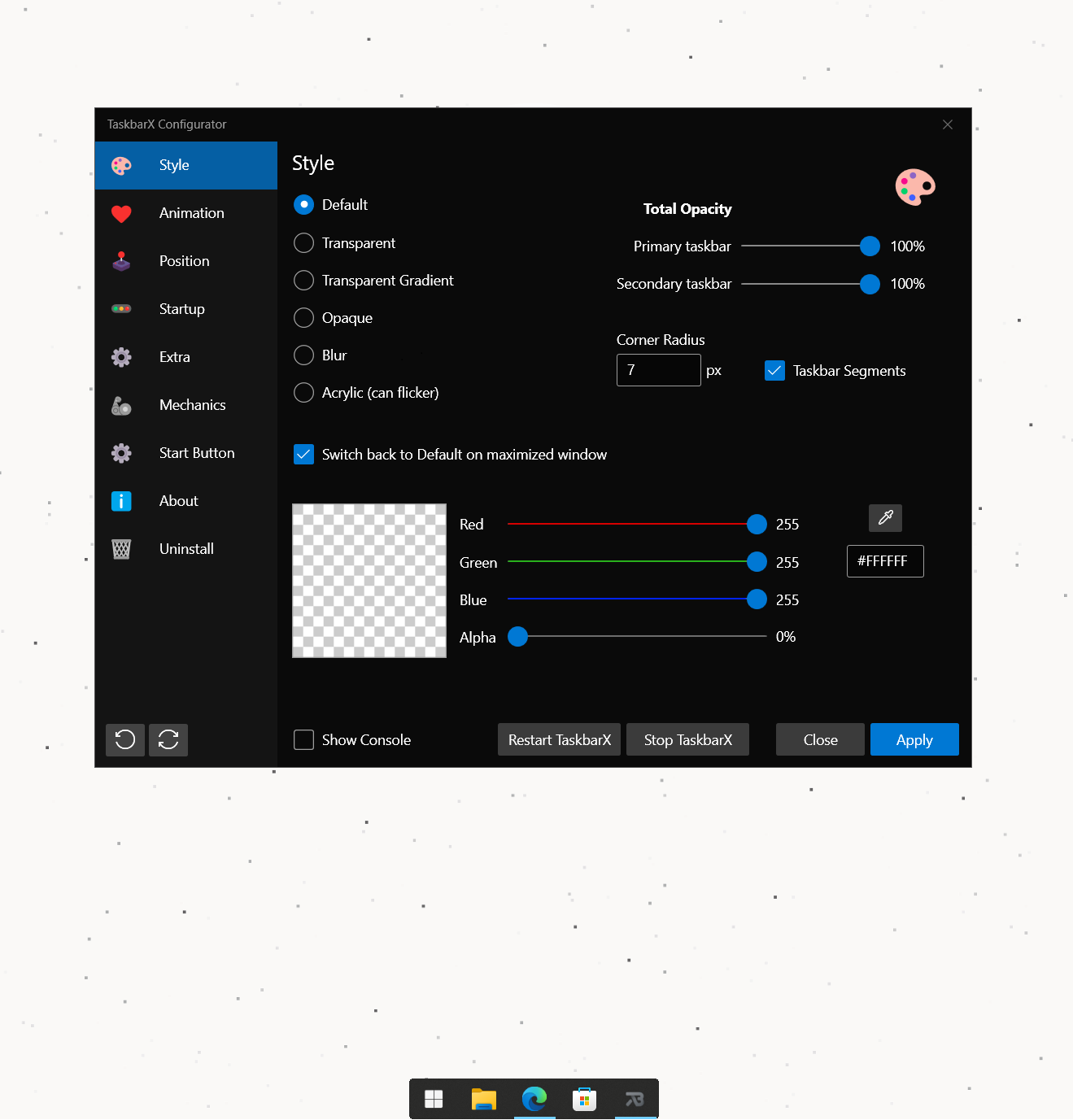
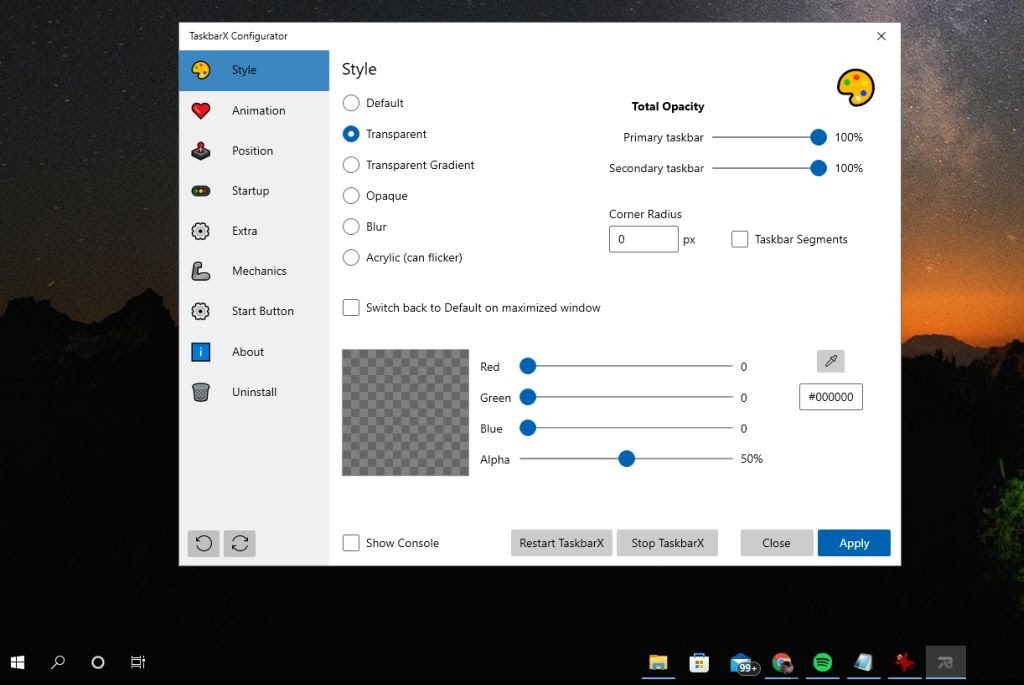
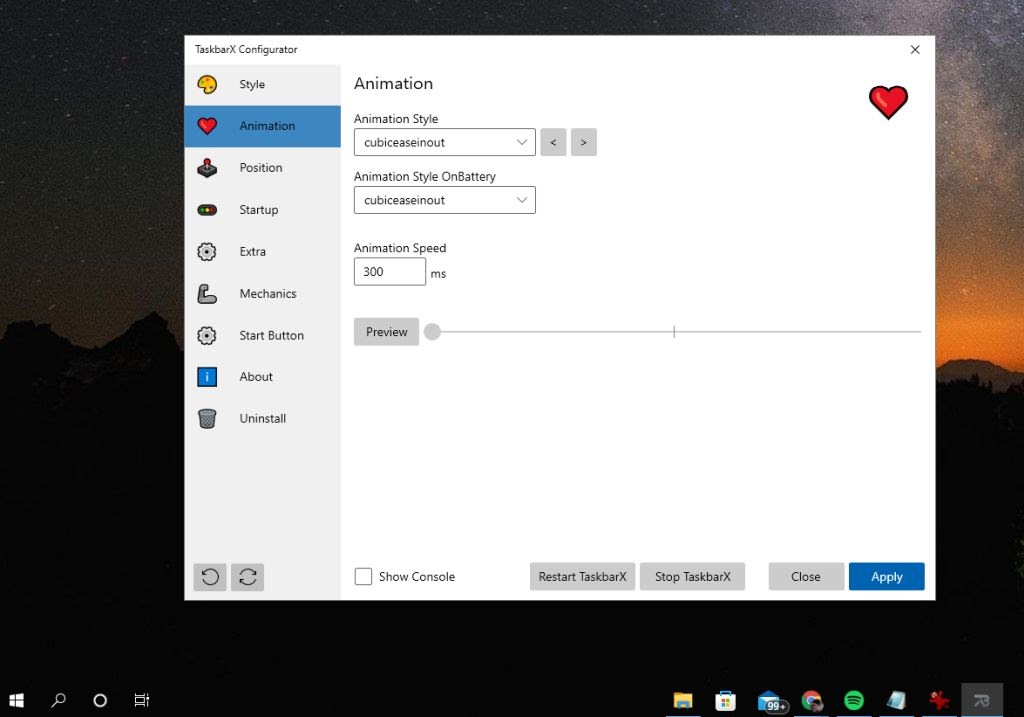
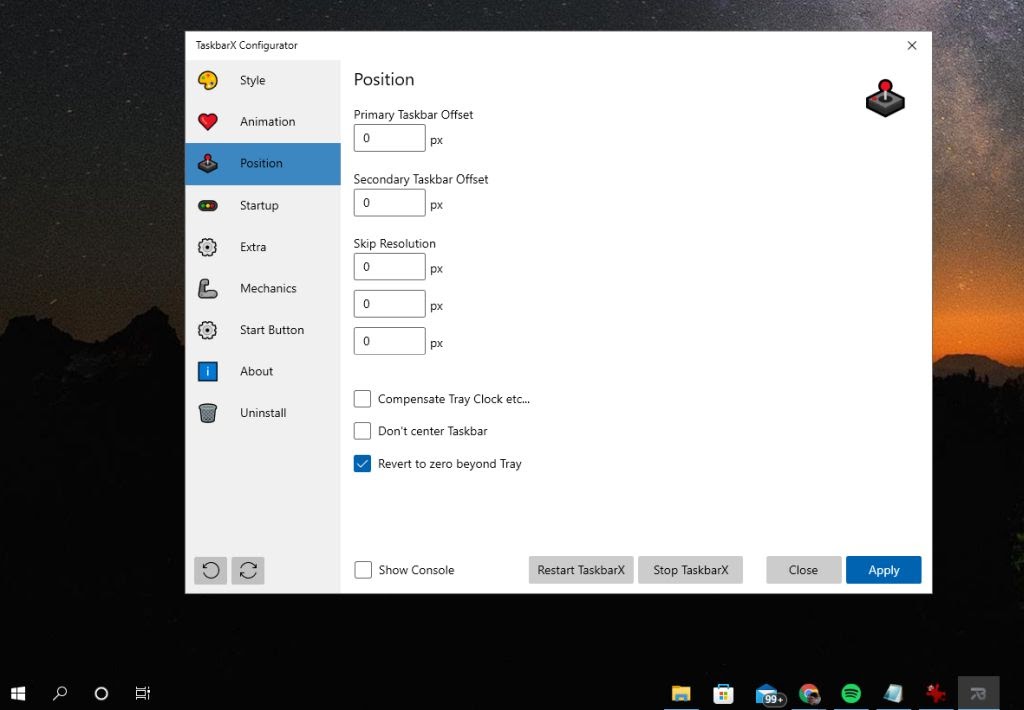
See TaskbarX in action with centered icons and custom styling effects.

Getting Started with TaskbarX
From download to a fully customized taskbar in under five minutes.
Downloading TaskbarX
Head to our download section and grab the portable ZIP file. The download is about 2.3 MB, so it finishes in seconds on most connections.
You have two download options. The free portable version is a ZIP archive you extract and run directly. The Microsoft Store version costs about $1-2 and adds automatic updates, which is a convenient way to support the developer if you use TaskbarX daily.
Stick with the 64-bit portable ZIP if you are running a standard Windows 10 or 11 installation. The 32-bit version exists for older systems but provides no advantage on modern hardware. If you plan to use TaskbarX on multiple computers, the portable ZIP is ideal because you can copy the entire folder to a USB drive.
C:\Tools\TaskbarX\ rather than your Downloads folder. TaskbarX runs from wherever you extract it, so the folder location becomes its install directory.Installation Walkthrough
TaskbarX is a portable application, so there is no traditional installer. Here is what to do after downloading:
- Right-click the downloaded ZIP file and select “Extract All” (or use 7-Zip/WinRAR if you prefer).
- Choose a destination folder. A good choice is
C:\Tools\TaskbarX\or any folder you use for portable apps. - Open the extracted folder. You will see several files including TaskbarX.exe and TaskbarX Configurator.exe.
- Double-click TaskbarX.exe to start the main process. Your taskbar icons will immediately move to the center.
- If Windows SmartScreen appears with a warning, click “More info” and then “Run anyway.” This warning appears because the free version is not code-signed, which is standard for open-source portable apps.
After running TaskbarX.exe, the centering takes effect immediately. You will not see a window or system tray icon for the main process. It runs silently in the background. To configure settings, open the separate TaskbarX Configurator.exe file.
Initial Setup & Configuration
Open TaskbarX Configurator.exe to access all customization options. The configurator has five tabs:
- Style — Set the taskbar appearance. Choose from Default, Transparent, Blur, Acrylic, or Transparent Gradient. Use the opacity slider to control how see-through the effect is. Pick a tint color with the color picker.
- Animation — Select one of 42 animation types from the dropdown menu. Adjust the animation speed with the slider. Set this to “None” for instant icon repositioning with zero animation.
- Position — Add a pixel offset to shift icons left or right from true center. Useful if you want icons slightly left-of-center, or if your taskbar has a system tray that makes centering look uneven.
- Taskschedule — Configure automatic startup. Click “Create” to add a Windows Task Scheduler entry that launches TaskbarX when you log in. Set a delay (5-10 seconds recommended) to let other startup programs load first.
- Extra — Set the refresh rate for icon repositioning. Lower values mean faster response but slightly higher CPU usage. The default of 400ms works well for most setups.
After adjusting any setting, click “Apply” at the bottom of the configurator. Changes take effect immediately. Click “Stop” to disable TaskbarX and restore your default taskbar layout.
Your First Customization
Here is a quick example to create a transparent, centered taskbar with a smooth animation:
- Open TaskbarX Configurator and go to the Style tab.
- Select “Transparent” from the style dropdown. Your taskbar background will disappear, leaving only the icons floating over your wallpaper.
- Switch to the Animation tab. Select “BackEaseOut” from the dropdown for a satisfying bounce effect when icons move.
- Set the speed slider to about 40% for a smooth animation that is fast enough to feel responsive but slow enough to notice.
- Click “Apply” at the bottom.
Now open and close a few applications to see the animation in action. Your pinned icons will slide smoothly to maintain their centered position each time a running app appears or disappears from the taskbar.
To go further, try the “Acrylic” style instead of Transparent. This adds a frosted-glass blur effect behind your icons, which looks particularly good with dark wallpapers. Adjust the color tint to complement your desktop theme.
Tips, Tricks & Best Practices
Make the most of TaskbarX with these practical suggestions:
- Startup reliability: If TaskbarX does not launch at boot, open the Taskschedule tab and recreate the scheduled task. Set the delay to 8-10 seconds so the taskbar has fully loaded before TaskbarX tries to modify it.
- Multi-monitor offsets: Each monitor can have its own offset value. If your secondary display has a different resolution, adjust its position offset separately in the Configurator to keep icons visually centered.
- Battery impact: TaskbarX uses minimal CPU (under 0.1% on modern hardware). On laptops, it has no measurable effect on battery life even with animations enabled.
- Taskbar segments: If you use taskbar segments (grouping icons by type), TaskbarX centers the entire segment group rather than individual icons, keeping your organized layout intact.
- Restoring defaults: Click “Stop” in the Configurator to immediately restore your standard Windows taskbar. Alternatively, close TaskbarX.exe from Task Manager. No permanent changes are made to your system.
For community help, check the TaskbarX Wiki on GitHub or search Reddit communities like r/Windows10 and r/desktops where users share their customized desktop setups.
Ready to customize your taskbar? Download TaskbarX and get started in minutes.
Frequently Asked Questions
Answers to common questions about downloading, installing, and using TaskbarX on Windows 10 and Windows 11.
Is TaskbarX safe to download and install?
Yes, TaskbarX is safe. The application is open-source under the MIT license, and its full source code is publicly available on GitHub at ChrisAnd1998/TaskbarX. Thousands of users have downloaded it without security issues since its initial release.
The portable ZIP download from the official site (chrisandriessen.nl) weighs about 2.3 MB and contains two small executables totaling roughly 787 KB. Because TaskbarX is a portable application, it does not modify your Windows registry or install background services. It only adjusts the visual position and styling of your taskbar icons while running. Windows Defender and most antivirus programs flag it as clean. The Microsoft Store version goes through additional review by Microsoft before listing.
- Source code is fully auditable on GitHub (MIT license)
- No registry modifications or system-level changes
- Portable app — runs from any folder, leaves nothing behind when deleted
- Listed on the Microsoft Store with verified publisher
Pro tip: If Windows SmartScreen shows a warning on first launch, click “More info” then “Run anyway.” This happens because the free version is not code-signed, which is normal for independent open-source projects.
For the official download, visit our download section.
Is TaskbarX free from malware and spyware?
TaskbarX is completely free from malware and spyware. The application collects no user data, sends no telemetry, and requires no internet connection to function.
Since the code is open-source on GitHub, security researchers and the community have reviewed it extensively. The application is written in C# using .NET Framework, and the compiled executables match the public source code. It has been scanned clean on VirusTotal across all major antivirus engines. The total download size is just 2.3 MB (ZIP), which is too small to bundle any meaningful hidden payload. Independent review sites like AlternativeTo and Softpedia have listed it without security warnings for years.
- No internet connection required — works entirely offline
- No data collection or usage tracking
- Clean on VirusTotal with 0 detections from 70+ antivirus engines
- Open-source code means anyone can verify exactly what it does
Pro tip: Always download TaskbarX from the official source or the Microsoft Store. Third-party download sites sometimes repackage software with adware bundled in, which is not the fault of TaskbarX itself.
Check our features section to see what TaskbarX actually does on your system.
Where is the official safe download for TaskbarX?
The official TaskbarX download is available from Chris Andriessen’s website at chrisandriessen.nl/taskbarx and from the Microsoft Store.
The free portable version comes as a ZIP file (about 2.3 MB) from the developer’s website. The Microsoft Store version costs around $1-2 as a small donation to support development, and it includes automatic updates. Both versions offer identical functionality. The GitHub repository (ChrisAnd1998/TaskbarX) also has release downloads, though the repo was archived in June 2025 and is now read-only. Version 1.7.8.0 from October 2022 remains the latest stable release.
- Visit the official developer page or our download section
- Download the ZIP file for the free portable version
- Extract to any folder (Desktop, Documents, or Program Files)
- Run TaskbarX.exe to start — no installer needed
Pro tip: Avoid sites like “taskbarx-download.com” or similar domains that repackage the software. The only legitimate sources are the developer’s personal site, GitHub releases, and the official Microsoft Store listing.
See our Getting Started guide for a full walkthrough of the download and setup process.
Does TaskbarX work on Windows 11?
TaskbarX does work on Windows 11, though with some limitations compared to Windows 10. The icon centering and taskbar styling features function correctly on most Windows 11 builds.
Windows 11 redesigned the taskbar as a full XAML Islands component, which changed how third-party tools interact with it. TaskbarX version 1.7.8.0 supports Windows 11, but some users on newer builds (particularly 24H2) have reported occasional issues after major Windows updates. The transparency and acrylic effects generally work well, though the centering feature may behave differently since Windows 11 already centers taskbar icons by default. If you mainly want transparency effects on Windows 11, TranslucentTB is another option that receives more frequent updates for newer Windows 11 builds.
- Icon centering works, but Windows 11 centers icons natively (TaskbarX still offers offset control)
- Acrylic, blur, and transparent styles work on most Windows 11 versions
- Some features may break after major Windows 11 updates — reinstalling the latest version usually fixes this
- Multi-monitor support is maintained on Windows 11
Pro tip: On Windows 11, TaskbarX is most useful for its transparency and acrylic effects, custom color tinting, and animation controls, since Windows 11 already handles basic icon centering. Set your preferred style in the Configurator’s Style tab.
Check the system requirements for full compatibility details.
What are the minimum system requirements for TaskbarX?
TaskbarX requires Windows 10 version 1709 (Fall Creators Update) or later, including Windows 11. The hardware requirements are minimal.
The application uses very little system resources. The total installed size is under 5 MB, and it typically consumes less than 15 MB of RAM while running. There are no specific CPU or GPU requirements because TaskbarX only repositions taskbar icons and applies visual filters that Windows already supports natively. The .NET Framework dependency is already included with Windows 10 and 11, so no additional runtime installation is needed. Both 32-bit and 64-bit systems are supported.
- OS: Windows 10 version 1709 or later, or Windows 11
- RAM: 2 GB minimum (TaskbarX itself uses under 15 MB)
- Disk: ~5 MB of free space
- CPU: Any processor that runs Windows 10
- Runtime: .NET Framework (pre-installed on Windows 10/11)
- Architecture: 32-bit and 64-bit supported
Pro tip: If you are running an older Windows 10 build, press Win+R, type “winver” and hit Enter to check your version. Anything from version 1709 onward (build 16299 or higher) will work with TaskbarX.
View the full breakdown on our system requirements page.
Does TaskbarX support macOS or Linux?
No, TaskbarX is exclusively a Windows application. It does not support macOS, Linux, or any other operating system.
TaskbarX is built in C# using .NET Framework and interacts directly with the Windows taskbar through Windows-specific APIs. The concept of “centering taskbar icons” is inherently tied to the Windows desktop shell, and there is no equivalent component on macOS or Linux. macOS already has a centered dock by default, while Linux desktop environments like GNOME, KDE, and XFCE each have their own panel customization tools built in. If you use macOS and want dock customization, the built-in System Preferences (or System Settings on macOS Ventura and later) lets you resize, reposition, and adjust auto-hide behavior. On Linux, tools like Dash to Dock for GNOME or Latte Dock for KDE provide similar centered-icon layouts.
- Windows 10 (v1709+) and Windows 11 only
- macOS users: Dock centering is a built-in feature
- Linux users: Dash to Dock (GNOME), Latte Dock (KDE), or Plank are alternatives
Pro tip: If you run Windows in a virtual machine on macOS or Linux, TaskbarX will work inside that VM since it sees a standard Windows taskbar.
Learn more about what platforms TaskbarX supports in our features overview.
Is TaskbarX completely free to use?
Yes, TaskbarX is completely free. The portable version from the official website costs nothing and includes every feature.
TaskbarX is released under the MIT open-source license, which means you can use it freely for personal or commercial purposes. There is no trial period, no feature gating, and no advertisements. The Microsoft Store version is listed at approximately $1-2, but this is a voluntary donation to the developer Chris Andriessen — not a purchase of extra features. The Store version has the same capabilities as the free portable download; the only practical difference is that the Store version receives automatic updates through the Microsoft Store infrastructure.
- Portable version: 100% free, all features included
- Microsoft Store version: $1-2 (donation to developer), same features
- MIT open-source license — free for personal and commercial use
- No ads, no trial, no premium tier, no subscriptions
Pro tip: If you appreciate the software and want to support future development, the Microsoft Store purchase is the easiest way to contribute. You also get the convenience of automatic updates through the Store.
Grab the free version from our download section.
What is the difference between the free and Microsoft Store versions?
There is no feature difference. Both the free portable version and the paid Microsoft Store version include identical functionality.
The free portable version is a ZIP archive (~2.3 MB) that you extract and run directly. You handle updates manually by downloading the latest version. The Microsoft Store version costs about $1-2 and bundles automatic updates through the Store, a cleaner install/uninstall experience, and sandboxed execution under Windows Store app policies. Both versions give you all 42 animation types, every taskbar style option (transparent, blur, acrylic, solid), multi-monitor support, position offsets, Task Scheduler integration, and the full Configurator interface.
- Free portable: Manual updates, extract-and-run, no installer needed
- Store version ($1-2): Auto-updates, cleaner install/uninstall, supports the developer
- Both include all 42 animations, all style options, multi-monitor, and the Configurator
- Neither version has ads, feature locks, or time limits
Pro tip: The portable version is better for power users who want full control over file placement and version management. The Store version is better for casual users who prefer a set-it-and-forget-it experience.
Read our Getting Started guide for help choosing the right version for your setup.
How do I download and install TaskbarX step by step?
TaskbarX is a portable application, so there is no traditional installer. You download a ZIP file, extract it, and run the executable directly.
The entire process takes under two minutes. The ZIP download is roughly 2.3 MB and extracts to a folder containing TaskbarX.exe (the main application) and TaskbarX Configurator.exe (the settings interface). You do not need administrator privileges to run it, and it makes no changes to your Windows registry. The application works from any directory on your system.
- Visit our download section and download the TaskbarX ZIP file
- Right-click the ZIP and select “Extract All” to a permanent location (e.g., C:\Tools\TaskbarX or your Documents folder)
- Open the extracted folder and double-click “TaskbarX Configurator.exe”
- Choose your preferred taskbar style from the Style tab (Transparent, Blur, Acrylic, or a custom color)
- Click “Apply” to activate TaskbarX — your icons will center immediately
- Go to the Taskschedule tab and click “Create” to set TaskbarX to start automatically with Windows
Pro tip: Do not extract TaskbarX to your Downloads folder. If you clean out Downloads later, you will delete the application. Place it somewhere permanent like C:\Tools\ or a dedicated Program Files subfolder.
For a full walkthrough with Configurator settings explained, see our Getting Started guide.
TaskbarX portable vs installer — which should I choose?
The free version of TaskbarX is portable only — there is no traditional installer. The Microsoft Store version is the closest thing to an “installed” version.
With the portable version, you extract the ZIP and run the application from any folder. Nothing gets written to your registry, no Start Menu shortcuts are created, and uninstalling is as simple as deleting the folder. The Microsoft Store version behaves more like a traditional installed app with automatic updates and proper Add/Remove Programs integration. Both versions create a Task Scheduler entry if you enable auto-start through the Configurator, which is the only system-level change either version makes.
- Portable (free): Best for users who want full control, keep software on USB drives, or use multiple PCs
- Store ($1-2): Best for users who prefer managed installs and automatic updates
- Portable can be moved between folders or drives without breaking
- Both create the same Task Scheduler entry for auto-start
Pro tip: If you put the portable version on a USB drive, you can use TaskbarX on any Windows PC without installing anything. Just run the Configurator, apply your settings, and stop it before ejecting.
Download the portable version from our download section.
How to fix TaskbarX installation errors on Windows?
Most TaskbarX “installation” errors are actually extraction or permissions issues, since the portable version has no installer to fail.
The most common problem is Windows SmartScreen blocking TaskbarX.exe on first run because the free version is not digitally signed. Another frequent issue is extracting the ZIP to a protected location like C:\Program Files without administrator rights, which prevents TaskbarX from writing its configuration file. Users running older Windows 10 builds (before version 1709) may also see .NET Framework errors because TaskbarX requires features added in the Fall Creators Update.
- SmartScreen block: Click “More info” then “Run anyway” — this is normal for unsigned open-source software
- Access denied: Move the TaskbarX folder to a user-writable location like Documents or Desktop
- .NET error: Run Windows Update to make sure .NET Framework is current, or check your Windows version with Win+R > winver
- Corrupted ZIP: Re-download the file — the official ZIP is roughly 2.3 MB. If it is significantly smaller, the download was interrupted
- Antivirus blocking: Add the TaskbarX folder to your antivirus exclusions list
Pro tip: If you extracted the files but the Configurator shows a blank window, try right-clicking TaskbarX Configurator.exe, selecting Properties, and checking “Unblock” at the bottom of the General tab. Windows sometimes blocks files extracted from downloaded ZIPs.
Review the full setup process in our Getting Started guide.
How to fix TaskbarX not opening, crashing, or freezing?
If TaskbarX is not opening or crashes immediately, the issue is almost always a conflict with another taskbar tool, a corrupted config file, or a missing .NET dependency.
TaskbarX version 1.7.8.0 is stable on most systems, but conflicts with tools like TranslucentTB, StartAllBack, or Rainmeter skins that modify the taskbar can cause crashes. The Configurator stores settings in a file next to the executable, and if that file becomes corrupted (often from a hard shutdown while TaskbarX was writing), the application may fail to start. Running multiple instances of TaskbarX simultaneously also causes freezing.
- Close conflicting tools: Quit TranslucentTB, StartAllBack, or any other taskbar customization app before launching TaskbarX
- Delete the config: In the TaskbarX folder, delete the configuration file (TaskbarX.ini or any .cfg file), then restart the Configurator — it will recreate defaults
- Restart Explorer: Open Task Manager (Ctrl+Shift+Esc), find “Windows Explorer” in the Processes tab, right-click it and select “Restart”
- Check Task Manager: Look for duplicate TaskbarX.exe processes and end them before relaunching
- Redownload: Your copy may be corrupted. Download a fresh ZIP from the official source
Pro tip: If TaskbarX used to work but stopped after a Windows update, delete the entire TaskbarX folder, extract a fresh copy of the latest version, and start from scratch. Carrying over old config files across Windows builds sometimes causes silent failures.
Still stuck? Our Getting Started guide covers the correct setup process from scratch.
TaskbarX stopped working after a Windows update — how to fix?
This is the most reported issue with TaskbarX. Major Windows updates sometimes change how the taskbar shell works, which breaks third-party tools that hook into it.
Windows 10 and 11 feature updates (like 22H2, 23H2, or 24H2) periodically restructure the taskbar component. When this happens, TaskbarX may stop centering icons, lose its transparency settings, or fail to start entirely. The GitHub issues page for TaskbarX has numerous reports of this pattern, particularly after Windows 11 builds that moved the taskbar to full XAML Islands rendering. Since the GitHub repository was archived in June 2025, there are no new official patches for recent Windows builds.
- Stop TaskbarX from the Configurator (click “Stop”)
- Delete the TaskbarX folder entirely
- Download the latest version (1.7.8.0) fresh from the official source
- Extract to a clean location and run the Configurator
- Apply your preferred settings and recreate the Task Scheduler entry
- Restart Windows Explorer: open Task Manager > right-click “Windows Explorer” > Restart
Pro tip: After a major Windows update, always restart your PC fully before troubleshooting TaskbarX. Some taskbar changes only take effect after a complete restart, and TaskbarX may start working again without any intervention.
Check our download section for the latest available version.
TaskbarX settings reset after every restart — how to fix?
Settings resetting on restart usually means the Task Scheduler entry is not configured correctly, or TaskbarX does not have write permissions to save its configuration file.
TaskbarX stores its settings in a configuration file inside the same folder as the executable. If the folder is in a read-only or protected location (like C:\Program Files without admin rights), settings get saved to memory but never written to disk. Additionally, the auto-start feature works through Windows Task Scheduler, not the traditional Startup folder. If the Task Scheduler entry was not created or was removed by a system cleanup tool, TaskbarX will not start with your saved settings on boot.
- Move the TaskbarX folder to a user-writable location like C:\Users\YourName\Tools\TaskbarX
- Open the Configurator and apply your settings
- Go to the “Taskschedule” tab and click “Create” to build a proper Task Scheduler entry
- Set the startup delay to 5-10 seconds (this gives Windows Explorer time to load first)
- Restart your PC to verify the settings persist
Pro tip: Open Task Scheduler manually (search “Task Scheduler” in the Start menu), navigate to Task Scheduler Library, and confirm there is an entry called “TaskbarX”. If a system cleaner like CCleaner removed it, you will need to recreate it from the Configurator.
See the full configuration walkthrough in our Getting Started guide.
How do I update TaskbarX to the latest version?
Updating the portable version requires downloading the new ZIP and replacing your existing files. The Microsoft Store version updates automatically.
The latest version of TaskbarX is 1.7.8.0, released in October 2022. Since the GitHub repository was archived in June 2025, this is likely the final official release. For the portable version, there is no built-in auto-update mechanism. You need to check the official download page periodically and replace your existing files manually. The Microsoft Store version handles this automatically through the Store’s update system. Your settings are preserved during manual updates as long as you extract the new files into the same folder without deleting the configuration file.
- Stop TaskbarX by opening the Configurator and clicking “Stop”
- Download the latest ZIP from the official source
- Extract the new files over your existing TaskbarX folder, replacing old files
- Relaunch the Configurator and click “Apply”
- Verify your settings are intact — they should carry over from the config file
Pro tip: Before overwriting, back up your TaskbarX configuration file. Copy the entire folder to a backup location so you can restore your settings if the update changes the config format.
Get the current version from our download section.
What is new in the latest version of TaskbarX?
The latest version is 1.7.8.0, released in October 2022. It includes stability fixes and compatibility updates for Windows 11.
Version 1.7.8.0 refined the Windows 11 taskbar detection and improved the multi-monitor centering behavior. Earlier major updates added the Configurator UI (replacing the old XML config approach), introduced all 42 animation types, and added the acrylic and blur taskbar styles. The transition from the original “FalconX” name to “TaskbarX” happened around version 1.5, which also brought the Task Scheduler integration for cleaner auto-start behavior. The GitHub repository was archived in June 2025, making 1.7.8.0 the final official release from developer Chris Andriessen.
- v1.7.8.0 (Oct 2022): Windows 11 compatibility fixes, multi-monitor improvements
- v1.7.x series: Configurator UI, Task Scheduler integration
- v1.5+: Renamed from FalconX to TaskbarX, 42 animation types added
- Original features: Acrylic/blur/transparent styles, position offsets, vertical taskbar support
Pro tip: Community forks of TaskbarX may appear on GitHub since the code is MIT-licensed. If you need compatibility with the newest Windows 11 builds, check GitHub for active forks that may have updated the codebase beyond the official 1.7.8.0 release.
Review all capabilities in our features section.
TaskbarX vs TranslucentTB — which is better for customizing the Windows taskbar?
TaskbarX and TranslucentTB serve overlapping but different purposes. TaskbarX is better for icon centering and layout control, while TranslucentTB is better for advanced transparency effects.
TaskbarX centers your taskbar icons with 42 animation options, offers position offset adjustments, and includes taskbar styling (transparent, blur, acrylic, solid colors). TranslucentTB focuses exclusively on making the taskbar translucent, with advanced features like dynamic transparency states that change when you maximize a window, open the Start menu, or use Timeline. TranslucentTB receives more frequent updates (version 2025.1.0 is the latest) and has stronger compatibility with recent Windows 11 builds. TaskbarX’s last official update was October 2022 (v1.7.8.0).
- Choose TaskbarX if: You want centered icons, animation effects, custom position offsets, or a macOS dock-like layout
- Choose TranslucentTB if: You only want transparency/blur effects and need better Windows 11 24H2 support
- TaskbarX advantages: 42 animations, icon centering, vertical taskbar support, position offsets
- TranslucentTB advantages: Dynamic states (maximize, Start menu), more frequent updates, lighter resource use
- Note: Do not run both simultaneously — they conflict when both try to modify taskbar rendering
Pro tip: If you want both centered icons AND advanced transparency, apply TaskbarX for centering, then configure its built-in acrylic/blur style instead of layering TranslucentTB on top. Running both together causes visual glitches and crashes.
See everything TaskbarX offers in our features section.
How do I customize TaskbarX animations and taskbar styles?
Open the TaskbarX Configurator to access all 42 animation types and four taskbar styles through a tabbed interface.
The Configurator has five tabs: Style, Animation, Position, Taskschedule, and Extra. The Style tab controls the taskbar appearance with four modes: Default (no change), Transparent (fully clear), Blur (frosted glass), and Acrylic (modern Windows 10 Fluent effect). Each style has a color picker and transparency slider, letting you tint the taskbar any color at any opacity. The Animation tab has a dropdown with 42 animation presets (linear, bounce, elastic, back, cubic, and more) that control how icons slide to center when apps open or close. The speed slider adjusts animation duration in milliseconds.
- Launch TaskbarX Configurator.exe from your TaskbarX folder
- Style tab: Select Acrylic, adjust the transparency slider, pick a tint color using the HEX/RGB picker
- Animation tab: Choose from the 42 animation types dropdown and set speed (lower = faster)
- Position tab: Fine-tune icon placement with pixel-level offset controls for primary and secondary monitors
- Extra tab: Set the refresh rate for how often TaskbarX checks icon positions (lower = smoother but more CPU)
- Click “Apply” to activate your changes instantly
Pro tip: The “BackEaseOut” animation gives the most natural, macOS-like bounce when icons reposition. Pair it with Acrylic style at 60-70% transparency for the cleanest dock effect. Set a Position offset of -100 to -200 pixels if you want icons slightly left of center.
Review the full feature set in our features section.
How do I completely uninstall TaskbarX?
Uninstalling the portable version requires stopping the application, removing the Task Scheduler entry, and deleting the folder. No registry cleanup is needed.
Since TaskbarX is portable, it does not register itself in Windows Add/Remove Programs (unless you use the Store version). The only system-level trace it leaves is the Task Scheduler entry for auto-start. If you just delete the folder without removing this entry, Windows will show an error message on every startup saying it cannot find TaskbarX.exe. The Microsoft Store version can be uninstalled like any Store app through Settings > Apps > Installed apps.
- Open TaskbarX Configurator and click “Stop” to deactivate the taskbar changes
- In the Configurator’s Taskschedule tab, click “Remove” to delete the auto-start entry
- Close the Configurator completely
- Delete the entire TaskbarX folder
- Restart Windows Explorer: open Task Manager (Ctrl+Shift+Esc), find “Windows Explorer”, right-click it and select “Restart”
Pro tip: If you already deleted the folder before removing the Task Scheduler entry, open Task Scheduler manually (search “Task Scheduler” in Start), navigate to Task Scheduler Library, find the TaskbarX entry, right-click it, and delete it. Alternatively, run SCHTASKS /DELETE /TN "TaskbarX" /F in Command Prompt as administrator.
Want to reinstall later? Grab a fresh copy from our download section.
Still have questions? Visit the Getting Started guide for detailed setup instructions or download TaskbarX to try it yourself.